Google Search Console Guide 2026: Setup, Reports, Indexing & SEO

If you’re serious about growing organic traffic in 2026, you can’t rely on rank trackers and gut feel alone. You need to see what Google actually sees. Google Search Console (GSC) is the closest thing to a direct line into Google’s understanding of your website.
It shows what queries you appear for, which pages earn clicks, what gets indexed or excluded, and which technical issues reduce visibility. With the right setup and a clear process for reading its reports, GSC becomes a weekly tool for finding quick wins and protecting your search performance.
This guide covers how to use Google Search Console in 2026 from start to finish: how to set it up properly, and how to use its reports to make decisions that improve rankings and clicks.
What Is Google Search Console?
Google Search Console is a free Google tool that helps you monitor your website’s search performance and technical SEO health. It shows how your pages appear in search results, what queries trigger impressions, and whether Google can crawl and index your content correctly.
In 2026, GSC data is especially valuable because it doesn’t only help with “rankings”—it helps you build the foundation that gets your pages surfaced in newer search experiences (including AI-driven ones).
What you can do with Google Search Console
- Track clicks, impressions, CTR, and average position
- See what Google has indexed vs. excluded (and why)
- Submit sitemaps and request indexing for updated pages
- Diagnose technical SEO issues (errors, redirects, canonical confusion, 404s)
- Monitor Core Web Vitals and page experience signals
- Validate structured data (Breadcrumbs, Videos, Products, etc.)
- Review external and internal linking signals
Google Search Console vs Google Analytics 4: What Each Tool Is For
People often mix Google Search Console and Google Analytics 4 (GA4) up, so here’s the clean way to think about it:
- GSC answers: How do people find you on Google Search, and how does Google understand your site?
- GA4 answers: What do people do after they land on your site? Engagement, events, conversions, and journeys.
They overlap a bit on “organic traffic,” but they’re measuring different parts of the funnel. If you want the full story, you use both.
How to Set Up Google Search Console (2026)
To start, you sign in with a Google account and add a “property” (the site you want to track). You’ll choose between:
- Domain Property (recommended for most businesses)
- URL Prefix Property (useful for specific sections like /blog/)
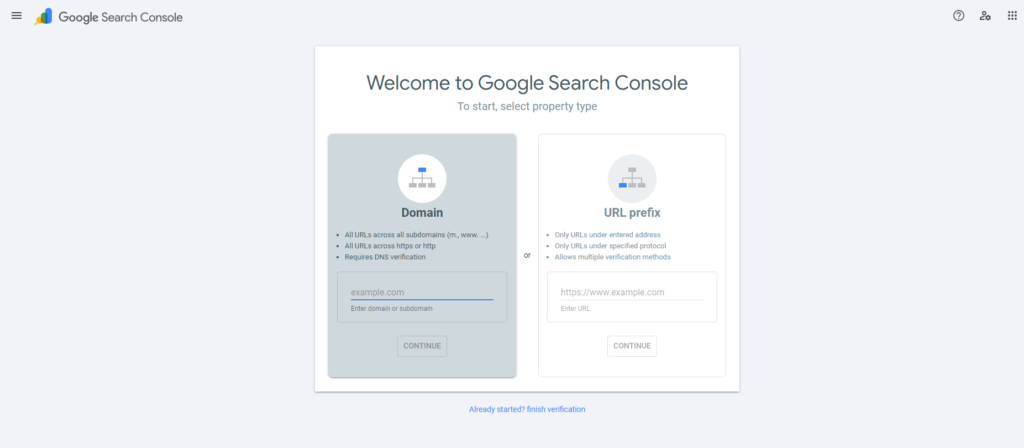
Option 1: Add a Domain Property (Best for full coverage)
A Domain property gives the widest view because it includes:
- http + https
- www + non-www
- all subdomains (like blog.yoursite.com)
- all paths
Steps (Domain Property)
- In Search Console, choose Domain
- Enter your root domain only (example: yoursite.com)
- Copy the TXT record Google provides
- Open your DNS provider (GoDaddy, Cloudflare, etc.)
- Add a new TXT record:
- Type: TXT
- Host/Name: @ (or leave blank depending on provider)
- Value: paste the TXT string from GSC
- TTL: default / 1 hour is fine
- Back in GSC, click Verify
Important: DNS updates can take minutes—or sometimes many hours. If it fails right away, it doesn’t always mean it’s wrong.
Option 2: Add a URL Prefix Property (For specific site areas)
A URL Prefix property tracks only one exact version of a site, like:
- https://www.yoursite.com/
- or https://www.yoursite.com/blog/
This is useful if you want to monitor a subfolder separately (or control access for teammates by scope).
Verification options (URL Prefix)
Google usually offers multiple methods, like:
- HTML file upload (often recommended)
- Meta tag
- Google Analytics
- Google Tag Manager
- DNS / domain provider
How to Use the HTML File Method
Best for: when you want a simple, direct, and stable verification method and you (or your web developer) can upload a file to the site’s directory.
- Choose URL Prefix
- Enter the full URL (example: https://www.yoursite.com/blog/)
- Download the verification HTML file
- Upload it to the correct root directory (based on the prefix you entered)
- Click Verify
Note: Keep that verification method active. If you remove the file or tag later, you can lose access.
How to Use the Meta Tag Verification (HTML tag)
Best for: when you can edit your site’s <head> (CMS theme settings, plugin, header script field).
- In GSC, choose URL Prefix and enter the full URL (e.g., https://www.yoursite.com/blog/), then click Continue
- Select HTML tag
- Copy the meta tag Google gives you (it looks like:
<meta name=”google-site-verification” content=”…”>) - Add it to your site’s homepage <head> section:
- WordPress: use an SEO plugin (like adding verification in the plugin’s “Webmaster Tools” area), or insert into header via theme settings / header scripts plugin
- Shopify: Online Store → Themes → Edit code → theme.liquid → paste inside <head>
- Wix/Squarespace: SEO / Marketing tools → Site verification → paste code
- Publish/save changes
- Go back to GSC and click Verify
Note: Don’t remove the meta tag later, or verification can break.
How to Use Google Analytics Verification (GA)
Best for: when GA is already installed and you have edit/admin access to that GA property.
- In GSC, choose URL Prefix → enter the full URL → Continue
- Select Google Analytics
- Make sure GA is installed on the site using the same Google account (or you have the required permissions)
- Confirm the GA tracking code is firing on the site (best to check the homepage loads GA)
- In GSC, click Verify
Common reasons this method can fail:
- GA is installed via a different account (no permission)
- Tracking code isn’t on the verified URL/version of the site
- GA tag is blocked by consent mode until user accepts (can interfere)
How to Use Google Tag Manager Verification (GTM)
Best for: when the site runs tracking via GTM and you have container-level access.
- In GSC, choose URL Prefix → enter the full URL → Continue
- Select Google Tag Manager
- Confirm GTM is installed properly (both the <head> and <body> snippets are placed as instructed)
- Confirm you’re logged into the Google account that has the right GTM permissions
- In GSC, click Verify
Common reasons this method can fail:
- Only one GTM snippet was installed (head OR body, not both)
- Wrong container is installed
- The GTM snippet is blocked/conditioned by cookie consent until opt-in
How to Use DNS / Domain Provider Verification (via provider)
Best for: when you can access DNS (same benefit as Domain verification, but used under URL Prefix options sometimes).
- In GSC, choose URL Prefix → enter URL → Continue
- Select Domain name provider (or DNS verification option)
- Choose your provider if listed (some providers have guided steps)
- Copy the TXT record value Google gives you
- In your DNS settings, add a new TXT record:
- Host/Name: usually @ (or blank depending on provider)
- Value: paste Google’s TXT value
- TTL: default / 1 hour
- Save DNS changes
- Return to GSC → click Verify
Tip: DNS propagation can take time. If it fails, retry later.
Owners, Users, and Permissions
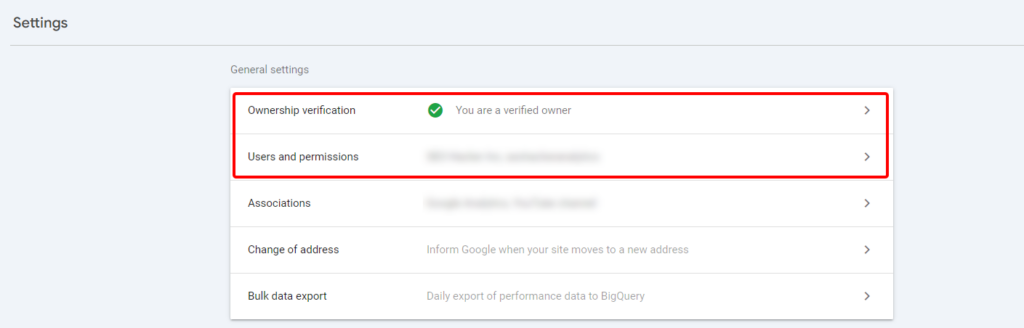
Access matters because GSC isn’t just reporting—it can affect indexation workflows.
Owners
Owners can view all data, change settings, submit sitemaps, request indexing, and manage users.
- Verified owner: the one who completed verification
- Delegated owner: granted owner access by a verified owner
Users
Users can view data, but their abilities vary:
- Full user: broad data access + some actions
- Restricted user: limited visibility
- Associate: can perform specific tasks but may not access the full UI
How to add a user to your Google Search Console Property
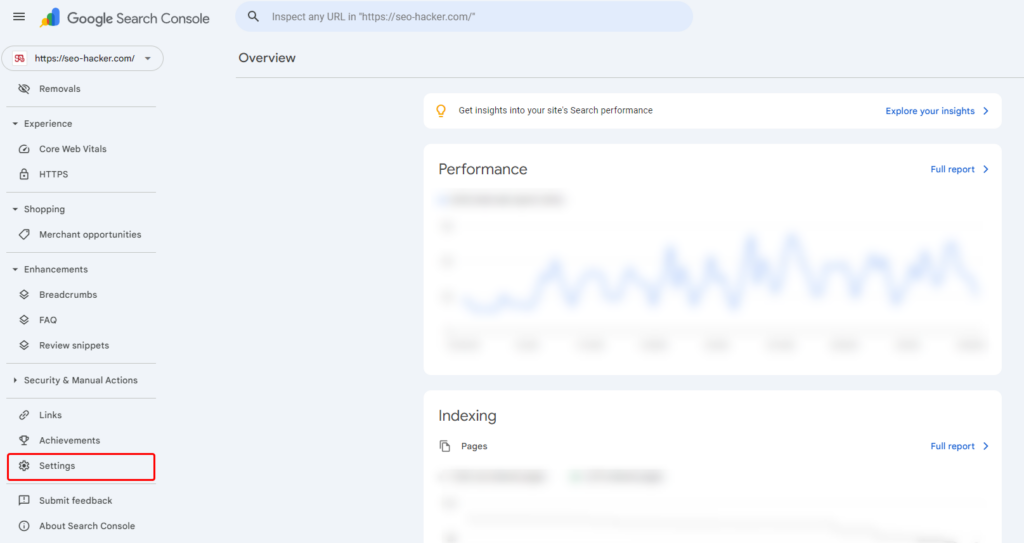
- Go to Settings → Users and permissions
- Click Add user
- Enter email + choose access level
- Save
How to Submit a Sitemap in GSC
A sitemap helps Google discover your important URLs more efficiently.
Steps
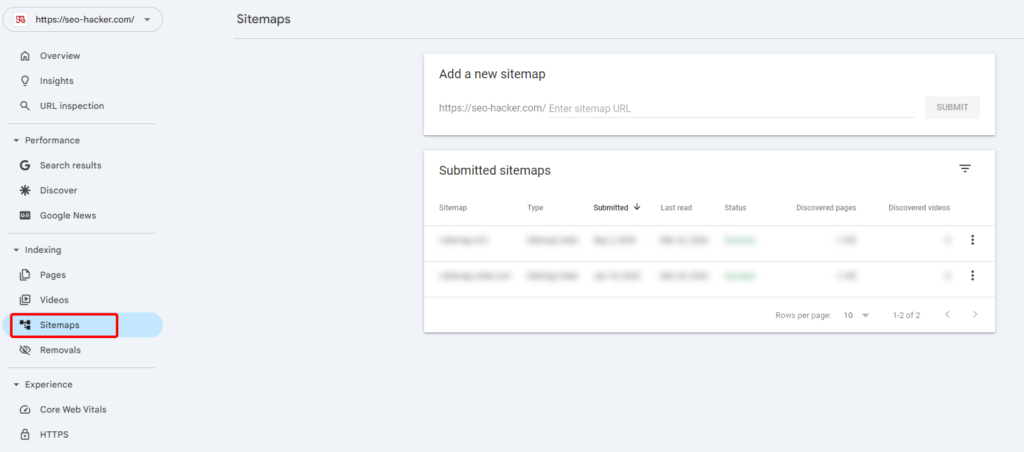
- Go to Sitemaps
- Enter your sitemap URL (example: https://yoursite.com/sitemap.xml)
- Click Submit
- Check the status (Success vs errors)
If you get errors, fix the root cause first—then resubmit or validate.
Google Search Console Reports You Should Actually Use
Let’s break down the reports that move the needle.
Performance Report (Search Results)
This is where you see how your site performs in Google Search.
Key metrics inside:
- Clicks: how many visits you got from search results
- Impressions: how often your pages appeared
- CTR: clicks divided by impressions
- Average position: average ranking spot
- Queries: What keywords your website is showing up for.
What to look for (practical wins):
- High impressions + low CTR: Your page is showing, but not getting chosen. Improve title + snippet clarity, match intent, and make the “why click this” obvious.
- Queries you expected but don’t see: Either you’re not ranking at all (content gap), or Google doesn’t think your page matches the intent.
- Pages stuck around positions 8–15: These are prime “almost there” pages. A few upgrades (better answers, stronger internal links, updated content) can push them into the top results.
Pro tip: Compare time periods (e.g., last 28 days vs previous 28 days) to spot real movement.
AI-Powered Configuration Tool (New in Google Search Console)
Google Search Console added an AI-powered configuration feature inside the Performance report to help you build the exact view you need faster. Instead of manually clicking filters, dimensions, and comparisons, you describe what you want in plain language and GSC configures the report for you.
What the AI Configuration Tool does
The AI configuration tool can automatically set up:
- Filters (query, page, country, device, search appearance where available).
- Date ranges and comparisons (example: last 28 days vs previous 28 days).
- Metric selections (clicks, impressions, CTR, position).
- Table and chart configuration choices within the Performance report.
What it Does not do
Google is clear that this tool is for configuring the report, not for doing advanced analysis actions. It cannot do things like sorting the table by “highest clicks,” exporting data, or performing spreadsheet-style computations for you.
Where to Find it in GSC
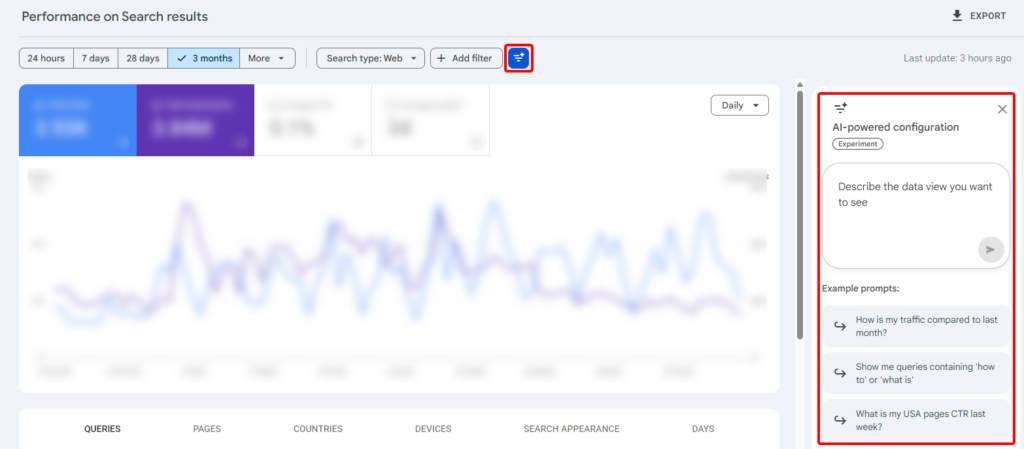
- Open Google Search Console
- Click Search results (Performance report)
- Look for the AI option such as a banner or button that lets you customize using AI
- Enter your request in natural language and apply the suggested configuration
Prompts to Use
When I use this feature, the best inputs are specific. Include these elements in one request:
- Dimension: query or page
- Metric focus: clicks, impressions, CTR, position
- Time range: last 7 days, 28 days, 3 months
- Comparison: previous period, YoY if available in that range
- Context filter: device, country, page folder, branded vs non-branded
I also have an in-depth guide on how to use Google Search Console’s new AI configuration tool that you can use.
URL Inspection Tool (Best for page-level troubleshooting)
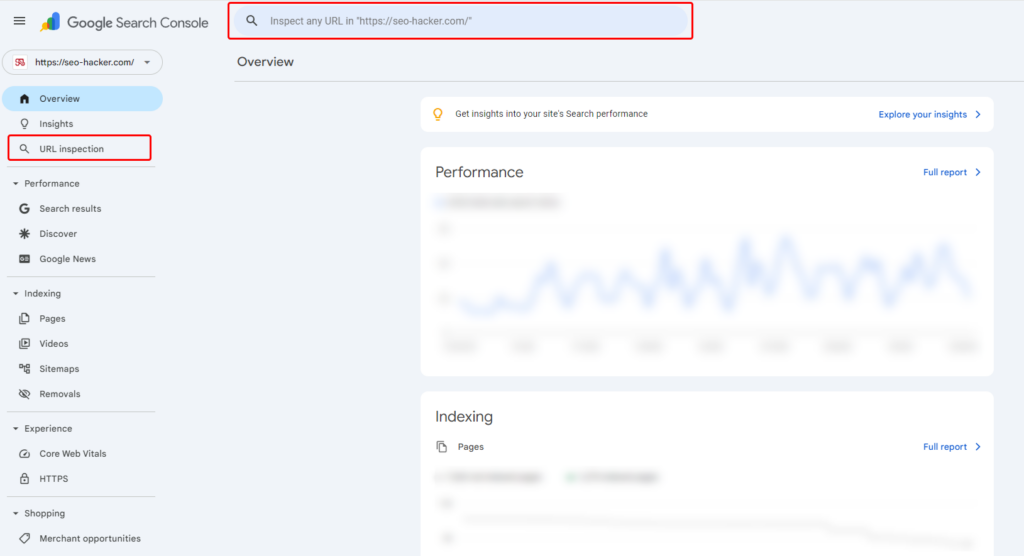
If there’s one feature you’ll use during launches, updates, and debugging—it’s this.
URL Inspection tells you:
- Is the page indexed?
- When was it last crawled?
- Does it have issues with canonical, robots, or rendering?
- Is structured data detected and valid?
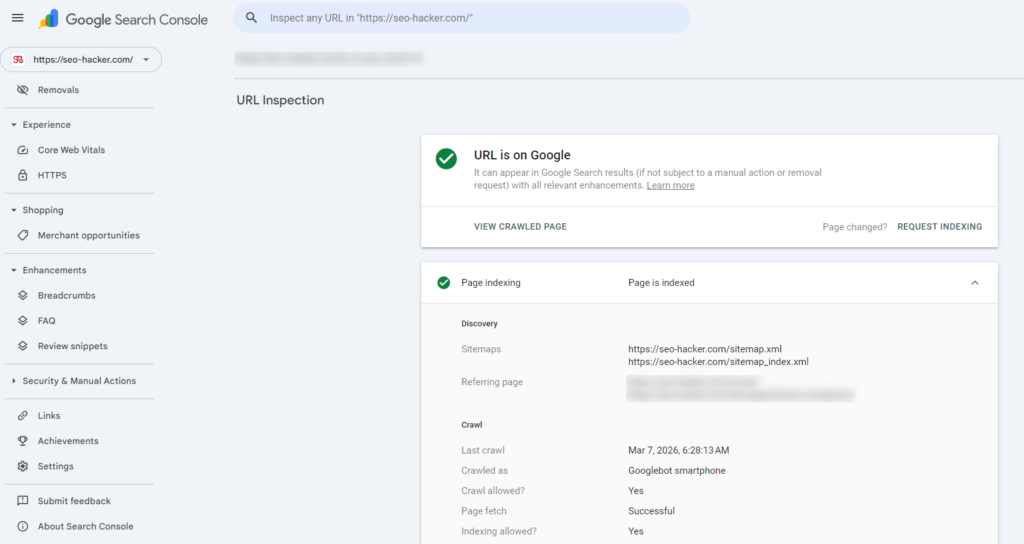
When to use “Request Indexing”
Use it when you:
- published a new page
- made major updates
- fixed an important technical issue
It’s still a request, not a guarantee—but it often speeds up reprocessing.
Page Indexing Report (Indexing → Pages)
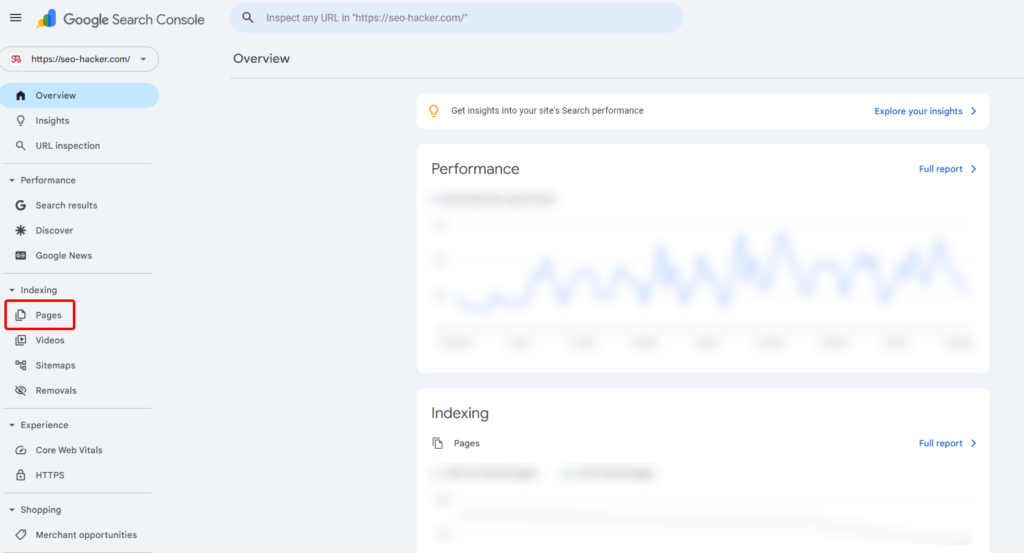
This shows which URLs are indexed and which are excluded, plus the reasons.
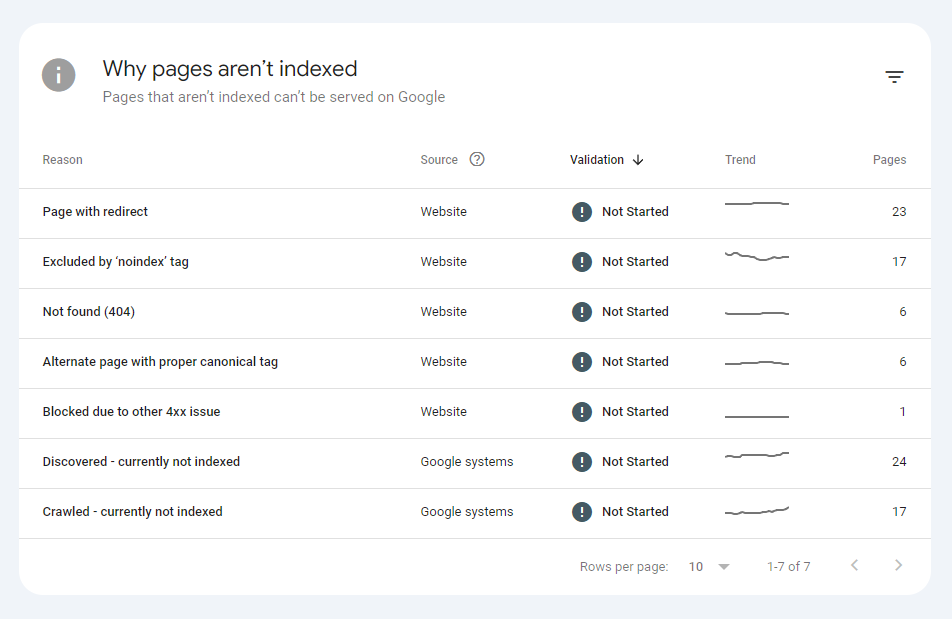
Why it matters: If a page isn’t indexed, it won’t show up in search results. (No index = no organic visibility.)
Common “not indexed” reasons and what they mean
- Not found (404): the URL doesn’t exist. Redirect it if it used to matter.
- Redirected: normal if you intentionally redirected URLs.
- Duplicate / canonical issues: Google is choosing another version. Fix canonicals and internal linking.
- Crawled, currently not indexed: Google knows it exists but hasn’t indexed it yet (could be quality, duplication, crawl priorities).
After fixing index coverage errors, you can click Validate Fix so Google re-checks the set of impacted URLs.
Sitemaps Report (Indexing → Sitemaps)
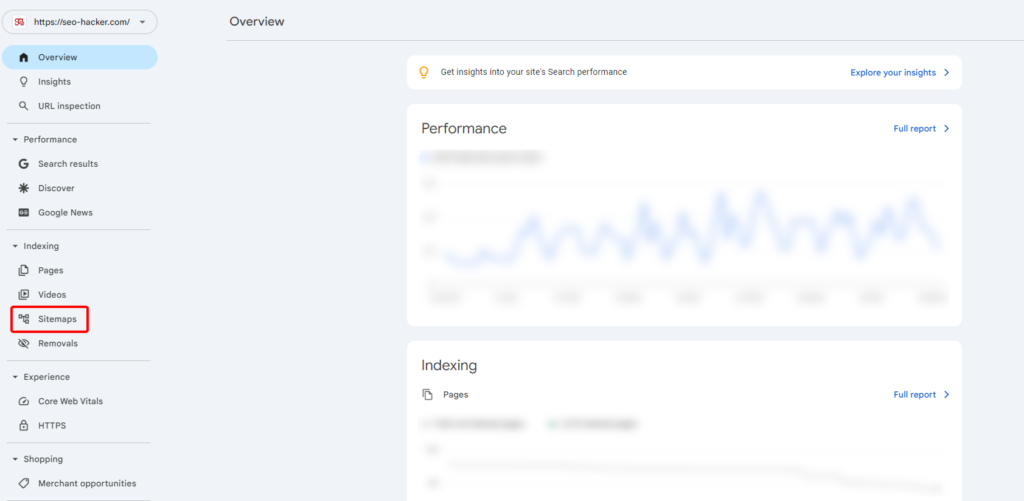
This confirms whether Google can read your sitemaps and how many URLs it discovers from them.
Pay attention to:
- Status (Success, Has errors, Couldn’t fetch)
- Last read date
- Discovered pages count
If Google “couldn’t fetch,” use a live URL test or check if the sitemap is blocked, redirected, or returning the wrong format.
Core Web Vitals Report (Experience)
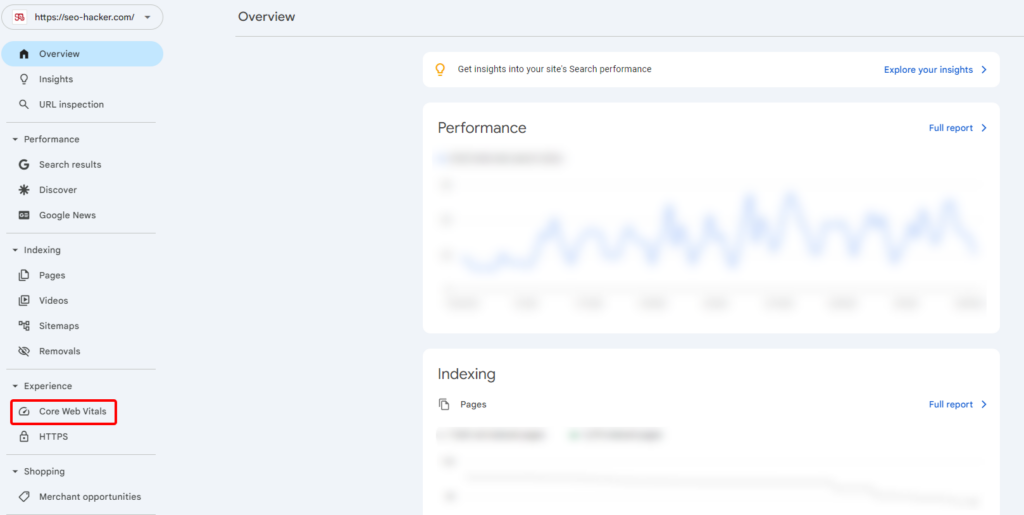
This report groups URLs into:
- Good
- Needs improvement
- Poor
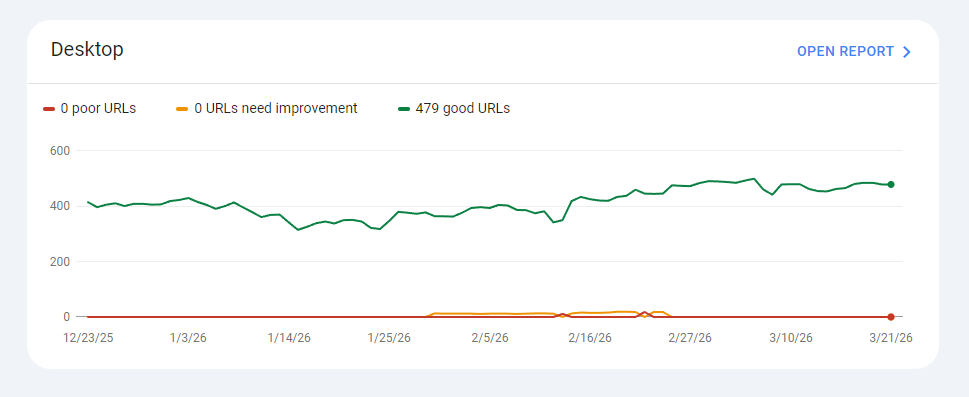
Core Web Vitals focus on:
- LCP: how fast main content loads
- INP: responsiveness to user interaction
- CLS: layout stability (no unexpected jumps)
How to use this report well: When you see failures across many pages, it’s usually a template/site-level issue (theme, scripts, image handling), not “one page” being the problem.
Enhancements (Structured Data Reports)
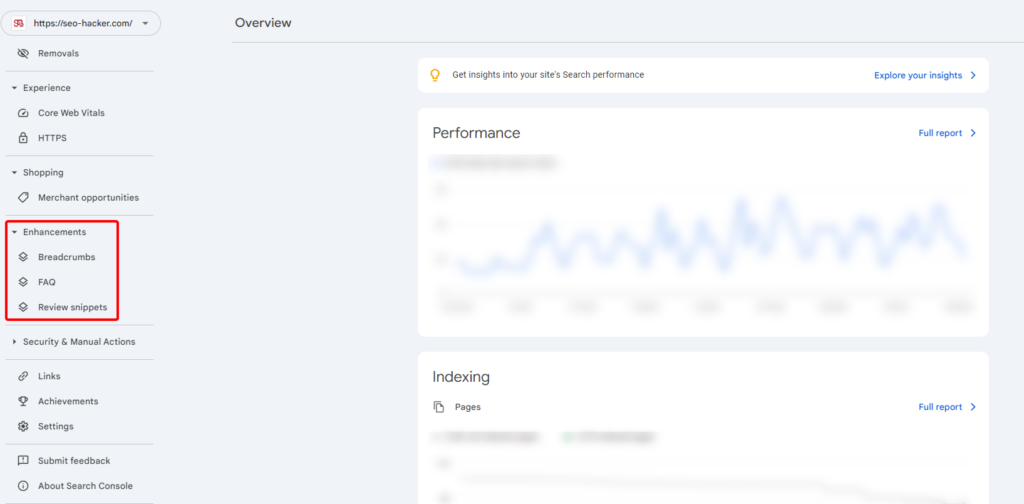
Enhancements show structured data Google detects—like:
- Breadcrumbs
- Videos
- FAQs (if applicable to your implementation)
- Products / Reviews (site-dependent)
If items are invalid, Google may not show rich results. Fix the markup, then validate.
Manual Actions (Penalty Check)

This tells you if your site has a manual penalty due to spam policy violations.
- No issues detected: you’re clean
- Issues detected: address the violation and submit reconsideration (after fixing root causes)
If rankings collapse overnight, this report should be one of your first checks.
Links Report (External + Internal Links)
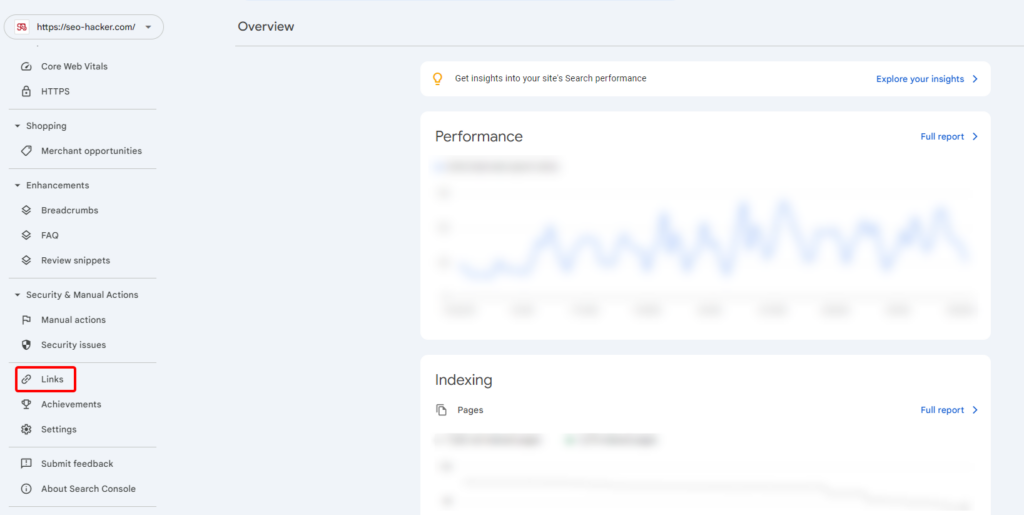
This report helps you understand:
- Top linked pages (backlinks)
- Top linking sites
- Common anchor text
- Internal linking distribution
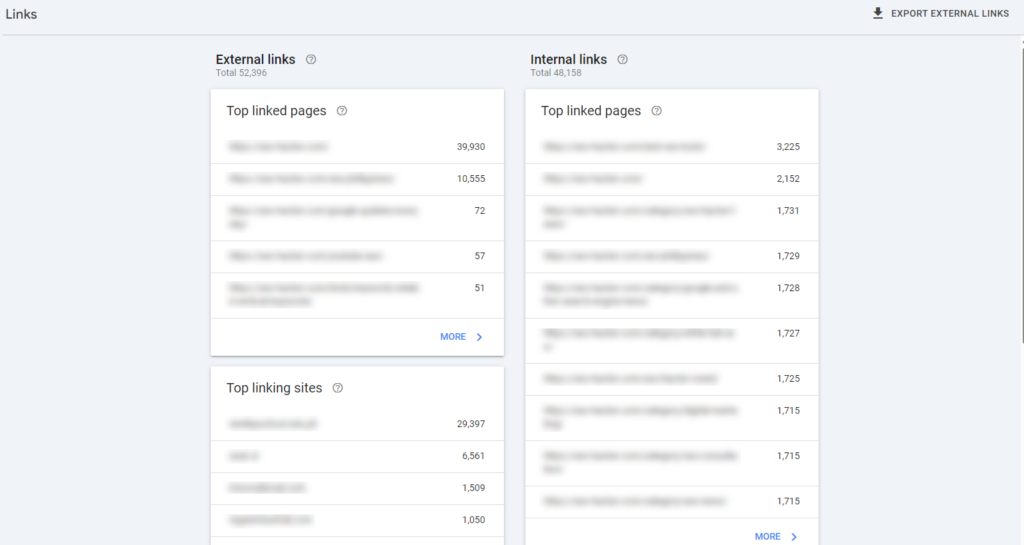
Note: Internal links are the easiest authority lever you control. If your most important pages aren’t getting internal links, you’re making Google work harder than it needs to.
Shopping (If you’re an eCommerce / product site)
If you use product structured data, you may see Shopping-related reports such as:
- Product snippets
- Merchant listings
- Shopping tab eligibility issues
Fix invalid items, then test with Google’s Rich Results tooling.
Pro Tips: Getting More Value from GSC Data
Connect GSC with GA4
This gives you a fuller story: search queries and landing pages alongside engagement and conversions.
Use case: If a page ranks and gets clicks but doesn’t convert, you can improve content alignment, UX, offers, or CTAs.
Build dashboards in Looker Studio
If you want leadership-friendly reporting (and a clear narrative), Looker Studio is where GSC shines—especially when combined with revenue or CRM data.
Use the Search Console APIs (Advanced)
If you have dev support, APIs can automate:
- Search analytics extraction
- URL inspection at scale
- Sitemap monitoring workflows
FAQs About Google Search Console
What does Google Search Console do?
Google Search Console shows how your website appears in Google Search, what queries trigger your pages, and whether Google can crawl and index your URLs properly. It also highlights technical and experience issues that can reduce visibility.
Is Google Search Console free?
Yes. Google Search Console is a free tool available to any verified site owner or manager.
Should I choose Domain or URL Prefix property?
Choose Domain if you want full visibility across protocols and subdomains. Choose URL Prefix if you only want to track a specific site version or section (like a blog folder).
How long does it take for GSC data to appear?
Newly verified properties often take time to populate. Performance data may appear sooner than some technical reports, but it’s normal to wait before everything fills in.
Why is my page “discovered but not indexed”?
It usually means Google knows the URL exists but hasn’t indexed it yet. Common causes include low perceived value, duplication, weak internal linking, or crawl prioritization.
Does “Request Indexing” guarantee I will rank?
No. It requests crawling and potential reprocessing, but ranking still depends on relevance, content quality, competition, and technical signals.
Key Takeaway
GSC is one of those tools that feels “basic” until you realize it’s literally Google telling you what it sees—and what it can’t. In 2026, with search becoming more AI-shaped, your technical foundation and clarity of content matter even more.
